The Key Request Manager is used to manage and update Service Requests Key relating to the business units that you have permissions to view.

It can be accessed by navigating to Business Continuity > Key > Key Request Manager.
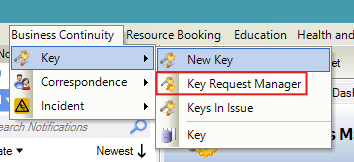
The Key Request Manager screen allows you to do the following:
Create a New Service Request from Key Request Manager
Click the New ( 
Updating a Request Status
Select from the Status drop-down to change a record's status.

This is the only editable field from the grid.
If several requests are required to be updated with the same status then:
-
Select all rows which require the same Status.
-
click the Update Status (

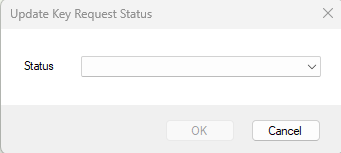
Update Key Request Status window will be displayed.
-
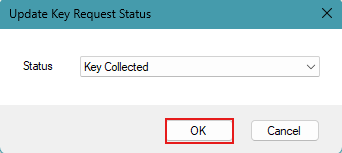
Select the required status from the drop down list.
-
Click OK button.
-
Click Save (

Including Closed Requests
To display all requests, do the following:
-
Select the Include Closed (

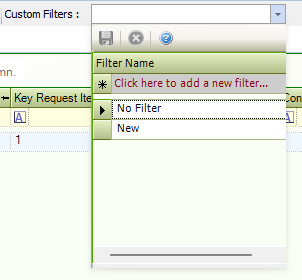
Using Custom Filters
Select from the Custom Filters drop-down, which allows you to select a filter set to apply to the grid, or create one by entering a name and clicking the Save button. This saves the current selection of filters and sorting.